
Cubby Clipboard
Windows clipboard history that searches inside screenshots
40 followers
Windows clipboard history that searches inside screenshots
40 followers
Cubby is the clipboard history Windows should have shipped. It keeps copied text, images, files, and screenshots searchable after restarts, while offline OCR lets you find a screenshot by the words inside it. Everything stays encrypted on your PC: no account, no cloud, no clipboard telemetry. Open it with a shortcut, search, and paste.




@tsouth2 love that this stays fully local, that's the right call for a clipboard tool! One thing I'd want before installing: does it auto-exclude sensitive copies, like from password managers, or is that something you have to set up yourself with the ignored apps list?
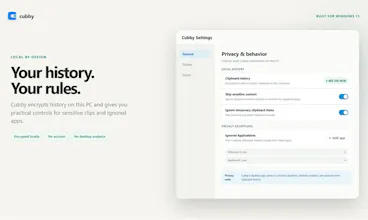
@clement_avq Automatic, two ways, out of the box. Cubby honors the Windows "exclude from clipboard monitoring" flag that password managers set when you copy a password. On top of that it ships with the major password managers (1Password, Bitwarden, KeePass, LastPass, Dashlane, and about ten more) pre-added to the ignored apps list, so their copies are skipped even if an app forgets to set the flag. You can remove any of those in Settings if you disagree with a default.
There's a third layer that's off by default: heuristics that catch things shaped like API keys, private keys, and card numbers. I left that one opt-in on purpose. A false positive silently drops a clip you meant to keep, and a clipboard manager that loses clips is worse than useless. Flip it on in Settings if you want it.
One thing to note however, if you copy from a password manager's browser extension, Windows sees the copy coming from the browser, so the app list can't catch it. Desktop apps set the exclusion flag reliably; extensions vary. And regardless of source, everything Cubby does store is encrypted at rest and never leaves your machine.
@tsouth2 Thanks for the detailed breakdown! the browser extension gap makes sense given how Windows reports it. Is that something you're planning to special-case down the line?
@clement_avq Yes, on the list, and I've got an approach in mind that should make it reliable without guessing at content. No ETA yet but it's the kind of edge I want Cubby to get right.
the remote-session workflows line in the feature list caught my eye more than the OCR itself, clipboard sync over RDP is usually the flakiest part of working on a remote box. does Cubby bridge the local and remote clipboard history into one searchable list, or does each session just keep its own separate history
@galdayan Good catch. RDP clipboard flakiness is exactly why Cubby exists.
Cubby runs locally and keeps one history. It doesn’t read the remote machine directly. But with clipboard redirection enabled, anything copied in the RDP session reaches your local clipboard, so Cubby captures it alongside local copies. That gives you one searchable history, including OCR’d screenshots from either side.
Remote support also keeps Cubby’s hotkey working inside the RDP window and delays pasting until the clipboard channel is ready, preventing the common “pasted the previous item” bug.
The only limitation: if remote clipboard redirection is disabled or broken, Cubby can’t capture those copies. Running Cubby on the remote machine covers that case, though the two histories remain separate for now.
@tsouth2 makes sense, and honestly keeping the two histories separate for now is probably the right tradeoff versus trying to fake a merged view you can't fully trust. the delay-until-channel-ready detail for pasting is a nice touch too, that's exactly the kind of thing that only shows up after someone's actually hit the bug in the wild rather than designing it in from a spec. running it on the remote machine as the workaround is a fine answer for the edge case, thanks for the detail.
The offline OCR and no-account angle is strong, especially for screenshots that usually disappear into the clipboard void. I'd highlight retention and cleanup controls a bit more, because with a clipboard tool people will want to know how fast they can clear sensitive history or exclude certain apps.
@sergbmw You're right and I'll add a section on this to the site. What's shipped today: history expires after 30 days by default (configurable), pinned items always stick around, and you can cap item count too. For fast cleanup there's per-clip delete, clear-all-except-pins, clear-everything, and a reclaim space button that actually shrinks the file on disk afterward. Retention changes take effect immediately, not on some overnight sweep.
Exclusions come enabled out of the box: Cubby honors the Windows sensitive-copy flag password managers set, and the major password manager apps are pre-added to the ignored list (editable in Settings).
One design decision worth knowing: when old images expire, Cubby keeps their OCR text and a thumbnail so search still finds them later. Explicit deletes remove everything, always. If people would rather have a full-wipe expiry mode with nothing left behind, that's easy to add, tell me.
And it's all AES-256 encrypted at rest either way, with the key protected by Windows DPAPI.
@tsouth2 Thanks, that makes the privacy story much clearer. The immediate cleanup controls and default exclusions feel especially important for a clipboard app.