
MacNotch
Turn your MacBook notch into a Productivity Hub.
180 followers
Turn your MacBook notch into a Productivity Hub.
180 followers
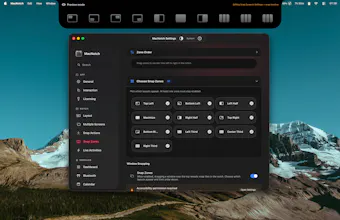
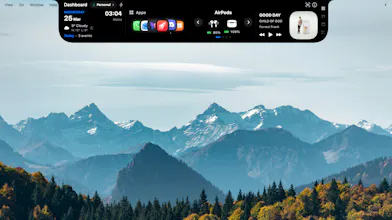
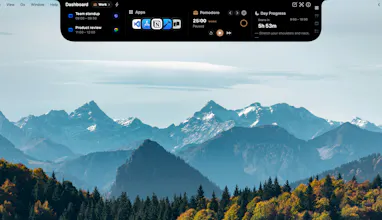
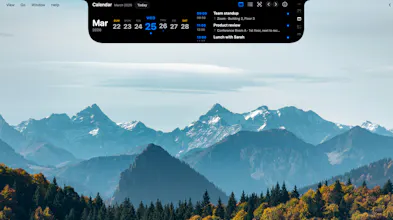
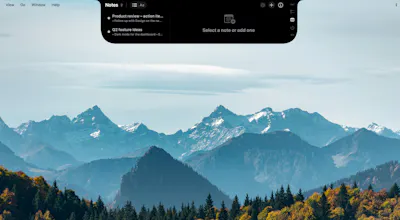
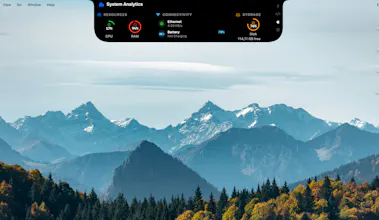
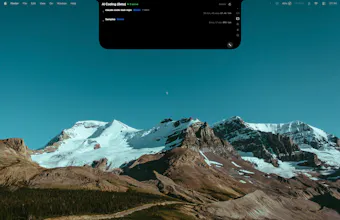
MacNotch turns your MacBook notch into a modular productivity hub. Weather, music, calendar, tasks, notes, Pomodoro timer, Bluetooth devices, system monitor, translation, app shortcuts, reminders, daily quotes and more, all at a glance, right where your eyes already go. Drag files onto the notch to AirDrop, zip, convert, or send to iCloud. Tune modules, dashboard slots, and layout in Settings so the notch stays as simple or as busy as you want.












Product Hunt
@curiouskitty Thanks for your question Kitty 🙌 . Honestly, the free trial will probably tell you more than I can in a comment, you’ll pretty quickly see if it fits how you work day to day.
MacNotch is native Swift, so the goal is for it to feel normal on macOS and not like a heavy thing sitting on your screen. There’s a bunch you can tweak (modules, layout, behavior), plus things like tasks, notes, Pomodoro, calendar, media, Bluetooth, system info, translation, and file drop actions. Pricing wise there’s a one-time option and a monthly option, depending on what you prefer.
I also want it to feel fun and make your Mac feel a bit more “yours,” not only useful. At the end of the day it’s personal taste though, so why not give it a go 🙃
This looks really great and very creative! I love that it’s one time purchase software and not subscription.
It would be useful if there were screenshots or if on the video on your homepage, you showed what it looks like when there are apps running because I’m not clear if this overlays apps or if it actually takes up some of the top screen space.
And something showing it minimizing/hiding and only showing the notch or something similar would be great. As it stands right now, it seems I have to install this to actually understand how it fully works, which isn’t something customer should have to do. Great job though this looks really cool!
@jasonrdunn Thank you so much for this feedback 🙌 . I’m really glad you appreciate the one-time purchase model. You’re absolutely right about the visuals, I should make that clearer. I’m going to add more screenshots, including how MacNotch looks when collapsed so it’s easier to understand before installing. Quick note in the meantime: when collapsed, MacNotch stays the same size as the built-in notch, so it doesn’t permanently take extra top bar space. Thanks again for taking the time to write this, it’s super helpful and I really appreciate it.
Buddymove
That's an interesting idea, but in my case, I already don't have enough space on my MacBook for all the icons I'd like to have in the top bar, and an app like that would take up even more space... the screenshots show only a few items from the app menu - what happens if there are more?
@szymon_kadzielawa Thanks for your comment Szymon. That is a great question and totally fair point.
When retracted, MacNotch takes exactly the same amount of space as your Mac’s notch.
If you already have many menu bar icons, some can sit under that notch area, but only while you interact with MacNotch.
The rest of the time, it stays compact and doesn’t permanently compete with your top bar space.
If you’re not already using one, I can also recommend a few good top bar app hiders, they do a great job at managing your top bar space.
You can also try MacNotch with the 14-day trial, and if it doesn’t fit your needs, I’m always open to suggestions.
@szymon_kadzielawa yeah I would plus one on the need for screenshots showing what happens when this software is minimized/hidden. And a simple YouTube video showing the same thing would be really helpful.
@jasonrdunn Hey, thanks for your feedback!, you can actually visit the MacNotch website https://macnotch.io/ where I uploaded some additional screenshots and demo videos. I'd love to hear your thoughts.
@freelrdev_etienne great, thanks!
I wish if we could have something similar for the windows too, I do use the Power toys but it is not as cool as this one, is this supported for ipads too?
@nayan_surya98 Thanks for your comment, Nayan, I really appreciate it. For now it’s Mac-only (no Windows or iPad support yet). I’m putting all my energy into making the macOS experience great first, then I’ll see where it can go next. Honestly, I’m not even sure it would feel natural on Windows 😅
@freelrdev_etienne That's true, we do not have the notch yet, but keep up the good work, one day when I will buy mac will definitely get this added for sure
Quick update, I just shipped MacNotch v1.8.0 🚀
This one has been a big focus on making the app feel smoother every day, with less friction and better reliability.
What’s new:
Dashboard Quick Toggles: faster access to actions like Keep Awake, Dark/Light mode, True Tone, Night Shift, Bluetooth, Hide Desktop Icons, and more
Screen Clean mode: instantly launch a distraction-free clean screen when needed
In-app App Help: quicker access to guidance directly inside MacNotch
Cleaner layout controls: easier module visibility and organization in settings
More reliable Git PR/MR experience: improved loading and stability in notch views
Better notch behavior, including drag/drop and monitor-connected feedback
Notch behavior refinements: better drag/drop stability, smoother transitions, and monitor-connected HUD feedback
All of this is designed to make MacNotch feel more immersive, more native to your Mac, and more natural to use. I hope this update is getting closer to what you expect
Quick update: MacNotch v1.8.3 is out 🚀
My 1.8.0 post was mostly Quick Toggles, Screen Clean, App Help, layout, Git in the notch, and drag and drop. This release adds a bunch that never got a proper shout out. Here’s what you get now:
Screen Time in the Dashboard. Today in a donut chart, a scrollable list of top apps (plus Other), app switch count in the header, frontmost app tracking, all local. Set day reset, retention, and ignored apps under Settings, Dashboard, Screen Time, then add the widget from Dashboard slots.
Settings. Collapsible sections so panes are easier to scan, plus search that jumps straight to the right place.
“What’s New” for Dashboard widgets. A short spotlight so new slots and widgets are hard to miss right after an update.
Live Activities and screens. Built in vs external displays for collapsed activities, clearer volume and brightness labels, per screen toggles, and links from Multiple Screens. Idle and external display behavior is tuned for setups without a notch too.
Smaller touches. Dashboard quotes layout polish, welcome back off by default for new installs, tighter multi display permission handling, and settings copy and layout tweaks.
App Help. Same access from the app, with richer answers on the site.
All of this is aimed at making MacNotch clearer after updates, simpler to configure, and nicer to live with every day.
Quick update: MacNotch v1.8.6 is out 🚀
A lot has landed since the 1.8.0 post (Quick Toggles, Screen Clean, App Help, layout, Git in the notch, drag and drop) and since 1.8.3 (Screen Time, Live Activities, collapsible Settings, and the Dashboard “What’s New” spotlight). This release pushes the notch further into notifications, coding, and hosting workflows. Here’s what you get now:
Notifications in the notch. See alerts from all your apps in one strip: dismiss, open detail, reply where macOS allows, group by time or by app, and filter to a single sender. Optional taller layout when you want a bigger list. Turn it on under Settings → Notifications; the pane walks you through setup. Optional behavior to clear dismissals from Notification Center too when you want macOS to stay in sync.
AI Coding (Beta) for Claude Code. Monitor sessions from the notch, refresh the list, open a session for detail (including token usage), and use Allow / Deny when the terminal is waiting. Still beta, still polishing. Enable under Settings → AI Coding (Beta) (Modules in the sidebar). You need Claude Code installed for real session data.
Code hosting: Bitbucket. Bitbucket Cloud pull requests sit next to GitHub and GitLab. Connect under Settings → Code hosting (app password, workspace, username).
Bluetooth. Smarter icons and types for more gear: Apple Watch, speakers and soundbars, barcode-style peripherals, with class/name hints so labels stay honest (including not mistaking earbuds for big speakers).
Never Sleep. Optional Persist Never Sleep at the bottom of Settings → Dashboard → Quick Toggles brings Never Sleep back after a restart if you had it on. Off by default.
“What’s New” again. After updating, the in-notch spotlight can call out Bitbucket, AI Coding (Beta), and Notifications & reply so the big additions are easy to find.
Requirements. macOS 14 or later.
All of this is aimed at making the notch useful for alerts, terminal coding, and review queues without living in a pile of windows and keeping MacNotch nicer to live with every day.